
Hello AKCP Team,
I am writing to request technical assistance regarding an integration issue between an AKCP sensorProbe+ (SPX+) and an AKCP 3-Phase Power Monitoring Sensor (PMS).
Despite following the wiring diagrams and configuration steps outlined in the product manuals, the SPX+ is failing to display the correct sensor readings on the dashboard, even though the physical PMS unit appears to be functioning correctly.
Can you please help with this?
Thank you!
- AKCP Support Team asked 1 week ago
- You must login to post comments
Dear AKCP Customer,
Please see the steps below for setting up the PMS in the SPX+ web UI.
First you will need to double check the correct wiring for the PMS to the SPX+ if using the Modbus Adapter or without the adapter which these details are found in our sensorProbe+ Modbus manuals here below;
http://www.akcp.in.th/downloads/Manuals/Modbus%20on%20SP+/Modbus%20Adapter%20Manual.pdf
http://www.akcp.in.th/downloads/Manuals/Modbus%20on%20SP+/SP+%20Modbus%20Manual.pdf
After confirming the connection is correct, please proceed as follows;
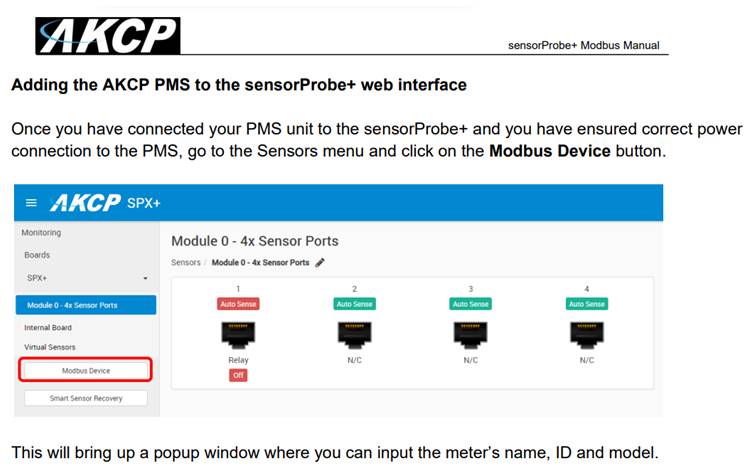
This is the correct starting point after making sure the wiring is correct, but note that the PMS is not an auto-detectable sensor. It must be manually added via our “Modbus Device” wizard in the Web UI. This wizard initializes the communication between the SPX+ (Master) and the PMS (Slave).
Please refer to the section “Adding the AKCP PMS to the sensorProbe+ web interface” in the Modbus manual we provided earlier for the full step-by-step instructions.
http://www.akcp.in.th/downloads/Manuals/Modbus%20on%20SP+/SP+%20Modbus%20Manual.pdf
Once you have added the PMS using the wizard, the meter and its associated sensors will appear on the SPX+ local interface.
Please follow these steps and let us know your results. If the issue persists, please provide the following to us (support@akcp.com) and include all the previous details:
1. Updated screenshots of your Modbus configuration page and a picture of the connection to the unit.
2. A fresh support file from the unit (Settings > Maintenance > Send Configuration to Support > Download).
Thank you,
Best regards,
AKCP Support Team
- AKCP Support Team answered 1 week ago
- You must login to post comments
Please login first to submit.